Printer fix guide · Wi-Fi and network
The printer shows Offline, drops off the network after a new router, or Easy Wireless Setup fails. Most cases come down to the Wi-Fi band, a changed network name or password, or Windows marking the printer offline.
Quick answer
- Wi-Fi bandMake sure the router broadcasts a 2.4 GHz network.
- New routerRun the Wi-Fi setup again with the new name and password.
- Offline in WindowsClear the Offline status with Microsoft’s steps.
- SleepsPrinter only wakes when you press a button? Check power saving.
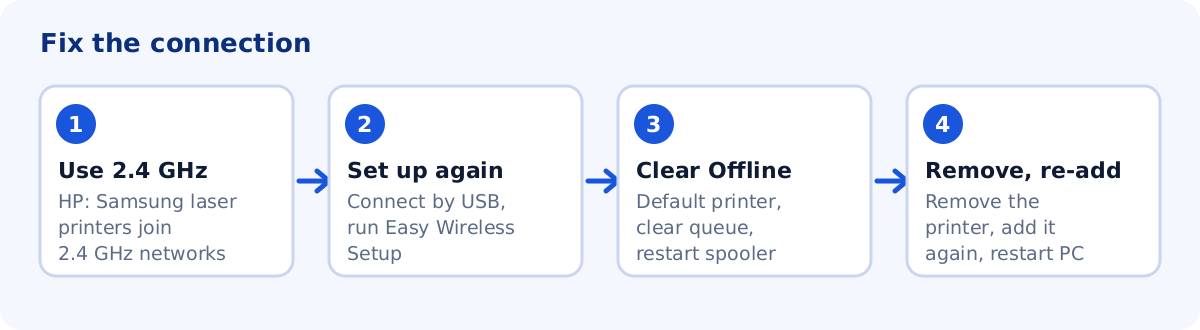
1. Use a 2.4 GHz network
HP’s guide for Samsung laser printers says these printers join only 2.4 GHz networks, and that they do not have 5 GHz capability. If your network does not appear when you set up the printer, check that your router or access point is broadcasting on 2.4 GHz. Some routers use one name for both bands; if the printer cannot join, try the router’s separate 2.4 GHz name.
2. Find the printer's IP address
Print a configuration report from the printer’s menu. The report shows the IP address and whether the printer is on your network. Your PC must be on the same network. Our older printer guide explains where to find the report.
3. Set up Wi-Fi again
If the router, network name or password changed, the printer cannot rejoin by itself. Users on the Samsung and HP forums say the fix was to reset the printer’s network settings and run the wireless setup again as if the printer were new.
- Connect the printer to the PC with a USB cable.
- Run Samsung Easy Wireless Setup. HP’s guide says this app is for a printer that is attached by USB.
- Select your network, enter the password and follow the steps.
- Unplug the USB cable and print a test page.
Other ways HP documents: use Samsung Easy Printer Manager in Advanced Mode (Device Settings and Network Settings tabs) while connected by USB, or Samsung Printer Diagnostics, which tries WPS first. On a Mac, Easy Wireless Setup is listed only for macOS 10.5 to 10.14; see Samsung printer not working on Mac.
4. Printer shows Offline in Windows
These are Microsoft’s steps for Windows 11:
- Turn the printer off, unplug it, wait 30 seconds, plug it in and turn it on.
- Open Start → Settings → Bluetooth & devices → Printers & scanners, select the printer and choose Set as default. If it is missing, turn off Let Windows manage my default printer first.
- Select Open print queue, click the ellipsis (…) and choose Cancel all.
- Restart the Print Spooler: search for Services, right-click Print Spooler, choose Restart.
- If it is still offline, remove the printer, then choose Add device and add it again. Restart the PC.
On Windows 10, clear Pause Printing and Use Printer Offline in the printer’s queue window if either is checked.
5. The printer only appears after you press a button
A user on HP’s community reported a Samsung M2835DW that was online only after someone pressed a button on the printer. That points to the printer’s power-saving mode. Check the power-save setting in Samsung Easy Printer Manager or on the printer’s panel. You can also reserve the printer’s IP address in your router so it does not change; the menu name differs by router.
Common questions
Why does my Samsung printer not see my 5 GHz network?
HP's guide says Samsung laser printers do not have 5 GHz capability. Use the 2.4 GHz network.
Do I need a USB cable to set up Wi-Fi?
Often yes. Easy Wireless Setup works with a printer attached by USB. HP also documents a WPS route in Samsung Printer Diagnostics for printers that support WPS.
Sources
The steps above come from these official pages.
- HP: Samsung Laser Printers – How to Setup a Printer on a Wireless Network Through USB in Windows
- HP: Samsung Printers – Configure Wireless Settings Using Samsung Printer Diagnostics
- HP: Samsung Laser Printers – How to Setup Wi-Fi Direct
- Microsoft: Troubleshooting offline printer problems in Windows
User reports we read for context. These are forum posts, not official instructions.
- Samsung Community: Samsung printer to WiFi not working
- HP Community: M2835DW only waking when button pushed on printer