Printer fix guide · macOS
Many older Samsung printers have no driver for new versions of macOS. The printer is usually fine. There are still ways to print, and Apple documents all of them.
Quick answer
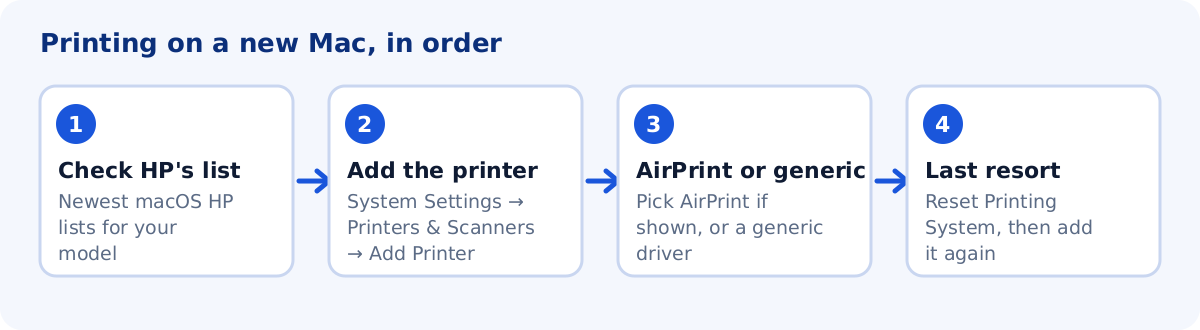
- FirstCheck the newest macOS HP lists for your model.
- Add itAdd the printer in System Settings. Choose AirPrint if it is offered.
- No driverUse a generic driver and turn on Use Generic Printer Features.
- Last resortReset the printing system. It removes all printers.
1. Check the newest macOS that HP lists
Samsung printer software now comes from HP, and HP stopped updating it for most models. For example, HP lists macOS 13 as the newest system for the Xpress SL-M2070 series, so macOS 14 and newer are not listed for it. Each model page on this site shows the macOS versions HP lists for that printer, and says clearly when HP lists only utilities and no print driver.
2. Add the printer in System Settings
macOS prints to many network printers without a driver, using AirPrint. Apple says the printer must support AirPrint, HP Jetdirect (Socket), Line Printer Daemon (LPD) or Internet Printing Protocol (IPP).
- Open the Apple menu → System Settings → Printers & Scanners.
- Click Add Printer, Scanner, or Fax.
- Select your Samsung printer. If an entry with AirPrint in the name is offered, choose it and print a test page.
- If the printer is not listed, open the IP tab and enter its IP address and protocol. A printed configuration report shows the IP address.
Only some Samsung models offer AirPrint. HP’s community suggests trying it first when it appears, for example Samsung M2070 AirPrint.
3. No driver? Use a generic driver and generic features
If no Samsung driver is offered, choose a generic printer driver from the Use list when you add the printer. A generic PostScript or PCL driver works only if your printer understands that language. Then turn on Apple’s generic features:
- In Printers & Scanners, select the printer and click Options & Supplies.
- Check Use Generic Printer Features and click OK.
4. Add the printer again
Add the printer a second time to create a new queue. When it prints correctly, delete the old queue. Apple also notes that some printers need a minute or two after power-on before they can print.
5. Last resort: reset the printing system
Apple recommends this only when other fixes have failed.
- In Printers & Scanners, Control-click the list of printers.
- Choose Reset Printing System and confirm.
- Add your printers again (step 2).
Setting up Wi-Fi from a Mac
HP lists Samsung Easy Wireless Setup for the Mac only for macOS 10.5 to 10.14. On a newer Mac, set up Wi-Fi from the printer’s own control panel, then add the printer as in step 2. More ideas are in Samsung printer offline or not connecting to Wi-Fi.
Common questions
Will an old Samsung driver install on the newest macOS?
HP lists these drivers only up to the macOS version shown on each model page. Newer versions are not covered, and the installer may fail.
Is my printer broken if there is no Mac driver?
No. The printer is fine. The missing piece is software for the newer macOS. AirPrint or a generic driver often still prints.
Sources
The steps above come from these official pages.
- Apple: Solve printing problems on Mac
- Apple: Add and manage printers on Mac
- Apple: Reset the printing system on your Mac
- HP: Samsung Laser Printers – Use the Easy Wireless Setup Software (mac)
User reports we read for context. These are forum posts, not official instructions.
- HP Community: Samsung Xpress SL-M2070 on newer macOS
- Apple Community: Printer driver for Samsung SCX3401
1 thought on “Samsung Printer Not Working on Mac: Sonoma, Sequoia and Newer”