Printer fix guide · Scanning
Printing works, but Windows 11 cannot find the scanner. On Samsung multifunction printers the scan driver is a separate file, and it is the one that most often goes missing.
Quick answer
- InstallInstall the scan driver and Samsung’s scan software for your model from HP.
- ScanScan with Easy Document Creator. Click Search if no scanner is listed.
- Other appsUse TWAIN or WIA if you scan from another program.
- Windows 11Check whether HP lists a scan driver for Windows 11 for your model.
Why printing works but scanning does not
On a Samsung multifunction printer, printing and scanning use two different drivers. HP lists them as separate files, for example a Print Driver and a Scan Driver. Windows can install the print driver by itself, but the scan driver usually has to be installed on purpose. Print-only models (for example the SL-M3325) have no scanner at all.
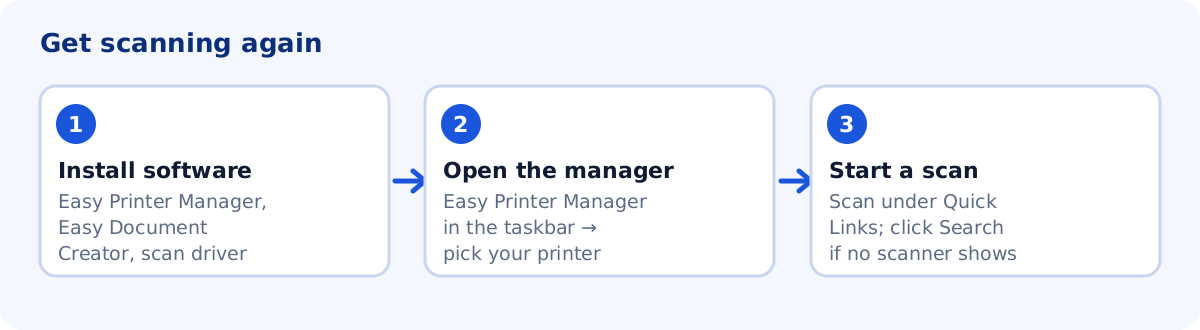
1. Install the scan driver and Samsung's scan software
HP’s guide says you must install Samsung Easy Printer Manager and Samsung Easy Document Creator before you can scan from the printer. You will also need the scan driver.
- Find your model on our model pages or on HP’s Software and drivers page for your printer.
- Choose Windows 11 (or your Windows version).
- Download and install the scan driver, Easy Printer Manager and Easy Document Creator from the list.
Our model pages show which of these files HP lists for each Windows version, so you can see in advance whether a scan driver exists for Windows 11.
2. Scan with Easy Document Creator
- Open Samsung Easy Printer Manager from the taskbar and select your printer.
- Choose the scan link under Quick Links. Easy Document Creator opens.
- If no scanner name appears, click Search to find the connected scanner.
- For several pages from the automatic feeder, choose ADF as the document source and save as PDF or multi-page TIFF.
3. Scan from other programs (TWAIN and WIA)
According to HP, the Samsung Universal Scan Driver installs both TWAIN and WIA. This lets other scanning programs use your Samsung scanner without Easy Document Creator. If another program cannot see the scanner, install the Universal Scan Driver and restart the program.
4. Network scanning: check the connection
For a printer on your network, make sure the PC and printer are on the same network and that scan to PC is enabled. The HP Community advice for a Samsung M2885FW that could not communicate with Windows 11 was to download the latest drivers for Windows 11 from HP, reinstall the software and check that scan to PC is enabled in the printer software.
If HP lists no scan driver for Windows 11
HP’s scan guides for Samsung printers are older and do not mention Windows 11. The list for your model is what counts. If HP lists no scan driver for Windows 11, we cannot say whether an older driver will work. Users on HP’s forum report this for some models, for example the SCX-4623FN. Some users say they scan with a third-party program such as NAPS2 once the printer is connected. That is a user report, not a method HP supports.
Common questions
Is the scan driver different from the print driver?
Yes. HP lists them as separate downloads. Install both on a multifunction printer.
Can I scan without Easy Document Creator?
Yes, if the Samsung Universal Scan Driver is installed. HP says it provides TWAIN and WIA, which other scanning programs can use.
Sources
The steps above come from these official pages.
- HP: Samsung Printers – Scan Driver Installation and How to Scan
- HP: Samsung Multifunction Laser Printers – How to scan using Easy Document Creator
- HP: Samsung MFP Printers – Using Samsung Easy Document Creator
User reports we read for context. These are forum posts, not official instructions.
- HP Community: Samsung M2885FW cannot communicate with PC in Windows 11
- HP Community: Scanner issues after upgrade to Windows 11