Printer fix guide · Windows 11
Your Samsung printer is on, but Windows 11 will not print or says the driver is unavailable. These are the fixes Microsoft lists, in the order that solves most cases.
Quick answer
- Stuck jobsClear the print queue. One stuck job blocks everything behind it.
- SpoolerRestart the Print Spooler service.
- DriverRemove old or duplicate drivers, then install the one for your model.
- Still stuckRemove the printer and add it again.
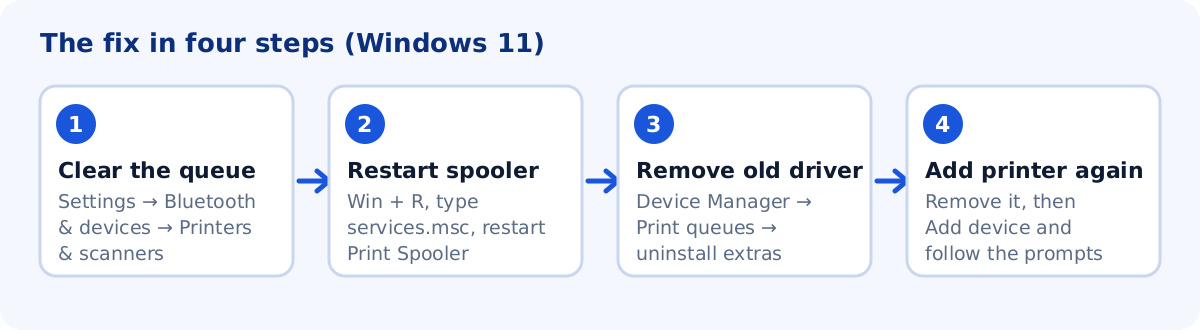
Check the basics first
Make sure the printer is on and shows no error on its display. For USB, try another cable or port. For a network printer, check that the printer and your PC are on the same network. Then try one test print from Notepad. If it still does not print, continue below.
1. Clear the print queue
A single failed job can block the queue. Microsoft lists this as the first fix.
- Open Start → Settings → Bluetooth & devices → Printers & scanners.
- Select your Samsung printer and choose Open print queue.
- Right-click each job and select Cancel until the queue is empty.
2. Restart the Print Spooler service
The Print Spooler is the Windows service that sends jobs to the printer. If it has crashed, nothing prints and apps may freeze when you press Ctrl + P.
- Press Windows key + R, type services.msc and press Enter.
- Scroll to Print Spooler.
- Right-click it and select Restart.
3. Remove old or duplicate drivers and install the right one
After a large Windows update, an old or duplicate driver can stop the printer from working. Users on the Windows Eleven Forum and in Samsung’s community describe exactly this with Samsung printers.
- Select Start, type Device Manager and open it.
- Expand Print queues (or Printers).
- Uninstall any unneeded, old or duplicate Samsung printer entries.
- Install the driver for your exact model. Samsung printer drivers now come from HP, and every model page on this site lists them by operating system.
4. Remove the printer and add it again
- Open Settings → Bluetooth & devices → Printers & scanners, select the printer and choose Remove. Confirm with Yes.
- Make sure the printer is on and connected.
- Select Add device and follow the prompts.
- Restart the PC and print a test page.
If Windows cannot find the printer on your network, see Samsung printer offline or not connecting to Wi-Fi.
If HP lists no Windows 11 driver for your model
Some older models have no Windows 11 driver on HP’s site. The printer may still work with a driver that Windows provides itself. Our guide for older Samsung printers shows how to use Windows Update, the Microsoft Update Catalog and generic PCL or PostScript drivers. Generic drivers only work for printers that understand those languages.
Common questions
Why does Windows say "driver unavailable"?
It means no working driver is installed for the printer, or the installed one cannot load. Remove the old entries in Device Manager (fix 3), then install the driver for your exact model.
Is it safe to download the driver from another website?
We only link to HP's official servers. Third-party "driver updater" sites often bundle unwanted software, so we do not recommend them.
Sources
The steps above come from these official pages.
- Microsoft: Fix Print Spooler service not running errors in Windows
- Microsoft: Troubleshooting offline printer problems in Windows
User reports we read for context. These are forum posts, not official instructions.
- ElevenForum: Samsung CLX-3305 does not print in Windows 11
- Samsung Community: M2070 series not working under Windows 11
1 thought on “Samsung Printer Not Printing on Windows 11: Fixes That Work”